The issue panel, field by field
Clicking a row in the list or a card on the board opens the issue in a panel that slides in from the right. The project stays behind it, so you keep your place.
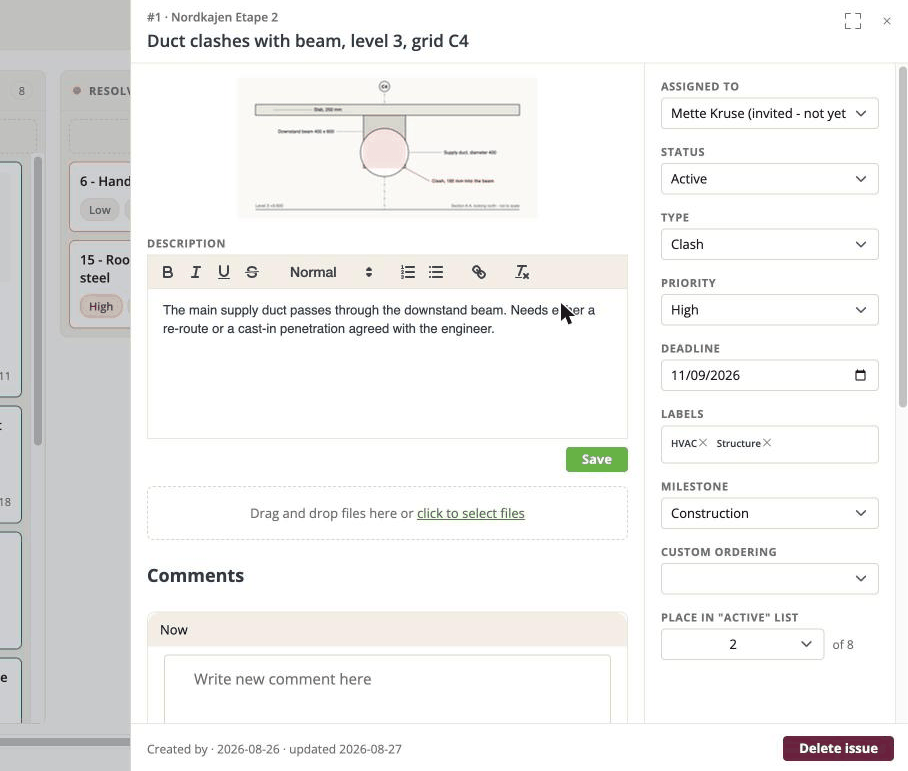
There is a full-screen toggle if the panel feels cramped - it opens the issue over most of the window while still showing a little of the board behind, so it is obvious you are in a panel and not a new page.
How saving works
Fields save the moment you change them. Pick a status, tick a label, set a date, and it is stored. A small green Saved appears beside the title for a second to confirm.
The description is the exception - it has its own Save button. See below.
At the top
The reference and project - #14 · Tower B or similar. The number is this issue's
reference within its project, and it is what people quote to each other.
The title. Hover over it and a pencil appears; click to edit it in place, and click away to save.
The main column
Description
A rich-text editor. The toolbar has bold, italic, underline, strikethrough, headings, numbered and bulleted lists, a link, and a "clear formatting" button.
Pasting from Word or a browser is cleaned up on the way in, so you get the text and the basic structure without dragging a wall of foreign styling with it.
The description does not save by itself. Click the green Save button underneath the editor. If you type a description and close the panel without clicking it, the text is lost.
Files
A drop area under the description. Drag files onto it, or click to choose them.
What happens next depends on the issue's age. On an issue that already exists, the files are added and appear in the comments below - the app says so when the upload finishes. On a brand new issue they are attached to the issue itself when you save it.
See Description, files and images.
Comments
Everything below the fields. See Comments and mentions.
The fields on the right
Assigned to
Anybody on the project. Leave it as Unassigned if nobody has picked it up yet.
The list includes people who cannot open the project - invitees who have not accepted, and placeholder people added for reference. That is deliberate: you can record that something is a consultant's problem without giving the consultant an account. They are never notified.
Status
Where the issue is up to. Every project offers On hold, Active, Resolved, Closed, plus anything it has added itself.
If the board is grouped by status, changing this here moves the card there, and vice versa.
Type
What kind of thing this is - a clash, an error, a request. Projects define their own, and the dropdown says Select type until somebody does. See Project options.
Priority
Low, Medium, High, Urgent, Modify, plus your project's own additions.
This is the field to use when the order matters to anybody but you: the list can sort by it, and unlike the order of cards on a board, it travels through exports and is readable by the API.
Deadline
A date. It shows on the card, and you can filter a date range in the filter panel.
Nothing chases you about it. There are no reminder emails when a deadline approaches or passes. If a date needs following up, somebody has to look.
Labels
Free-form tags, several per issue. Filterable, and included when you export.
The choices come from the project's list. If it is empty, nobody has set any up yet.
Milestone
Which phase or delivery this belongs to. Project-defined, like Type.
Worth knowing if you touch the API or an AI assistant: this field is called stage
there. Same field, different word - see
Issue, task or topic?.
Custom ordering
Which column the issue sits in on the custom-columns board. See Custom columns.
Place
The card's position within its column on the board - 3 of 17. Setting it here is easier
than dragging when the column is long, and the number updates itself when you change the
status.
Everybody sees the same order, and it is readable by the API and by an AI assistant. It is not recorded in the issue's history and sends no email, so nothing tracks who moved a card. See Board view and grouping.
At the bottom
Who created the issue, when, and when it was last updated.
Delete issue appears only if you are allowed to delete this one - the person who created it, or the project owner. It asks you to confirm, naming the issue, and it cannot be undone. See Who may do what.