Filters, search and sorting
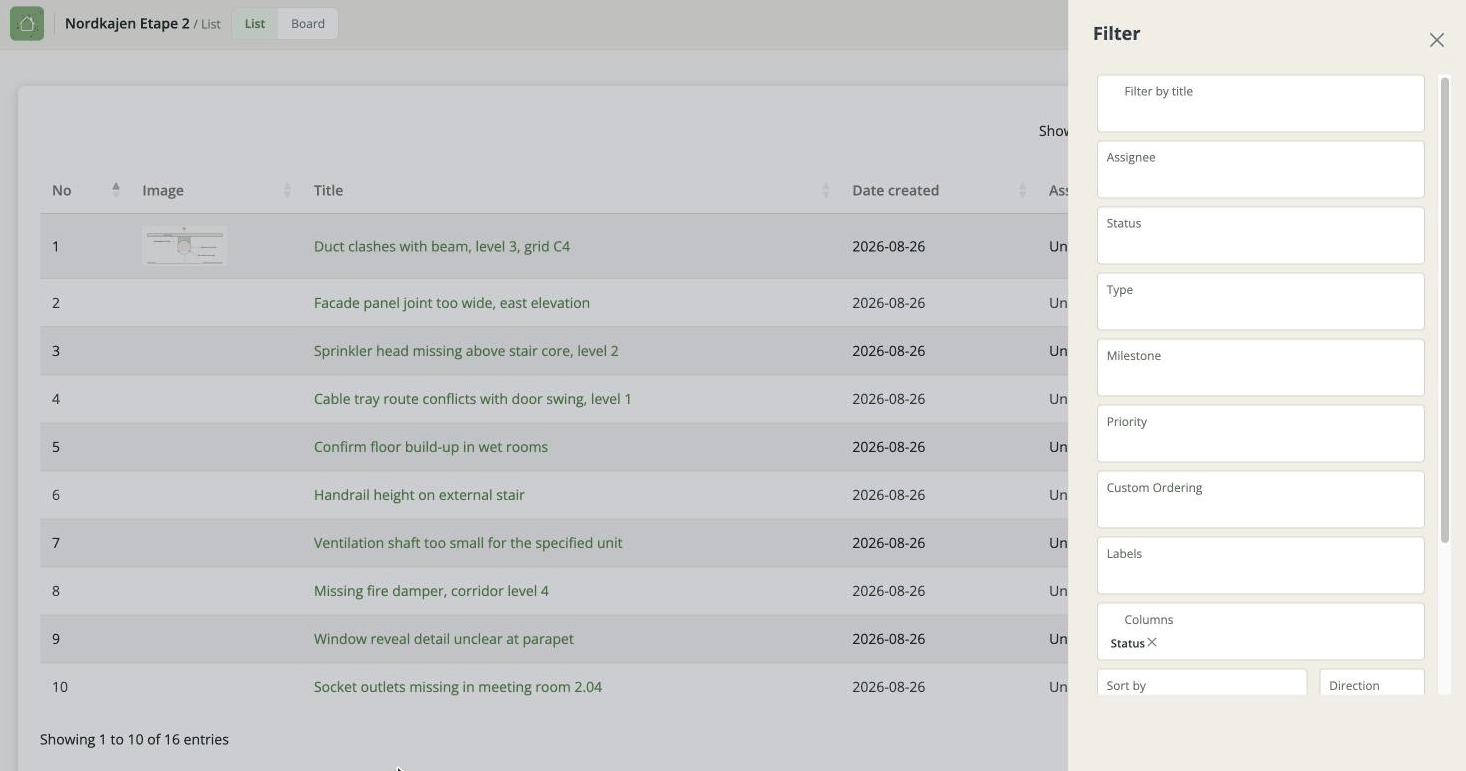
The funnel icon in the top bar opens the filter panel. It slides in from the right and controls both the list and the board.
The thing to know first
Filters live in your browser, per project.
They are not part of the project and they are not shared. Your colleague looking at the same project can see a different set of issues, and neither of you is wrong.
Two consequences worth remembering:
- "There are no issues in this milestone" may be untrue. It may mean your filter is hiding them.
- Your filters follow the browser, not your account. Switch to your laptop, or a private window, and you start clean.
What is in the panel
Board by - what the board's columns are. Same as Group by in the top bar.
Search - free text across every field, including hidden columns.
One filter per field - Status, Assigned to, Type, Milestone, Priority. Tick the values you want; ticking none means "all of them".
Labels - tick one or more. An issue matches if it has any of them.
Filter by title - narrows to issues whose title contains what you type. Different from the search box above the table, which looks at every field.
Columns - which columns the list shows. Nothing to do with filtering; it lives here because this is the panel that remembers your preferences.
Sort by and Direction - the sort field and ascending or descending. Useful for sorting by a column you have hidden.
Deadline - choose Before, After or Between, then the date or dates.
Show Closed - on by default, so closed issues are in the list until you turn it off. Turning it off is the quickest way to see only what is still live.
Telling at a glance what is hidden
Above the list and the board there is a row of chips, one per active filter, with a count beside them: x of y issues shown, N hidden by filters.
Each chip clears its own filter, and Clear all filters clears the lot.
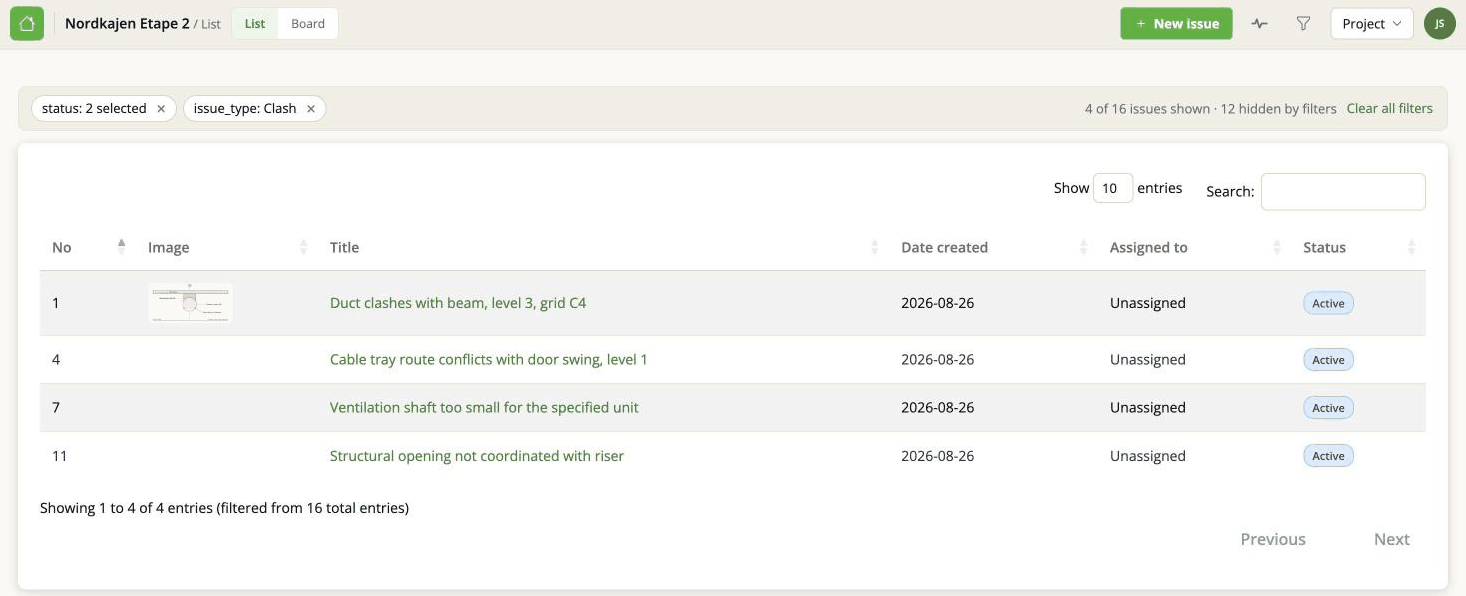
This is the thing to look at when a count seems wrong. If the chip row is empty, nothing is being hidden and the number really is the number.
Clearing filters
Use the chips - that is what they are for. You can also untick things in the panel; each filter is remembered separately, so one set two weeks ago is still applied today unless you clear it.
Filters and export
The filters here do not affect what a BCF export contains. The export dialog has its own filters, and only those decide what goes into the file.
This is one of the most common wrong assumptions about the app, which is why it appears on three different pages.